
Test inbox and email logs
Inspect a captured test message
- Open Test inbox and send the sample or a request with a test key.
- Select a message to inspect HTML, plain text, raw headers and attachments.
- Switch the preview width to check a narrow layout. Remote images load only when you request them; scripts are disabled.
- Review the listed links before opening them. Test capture does not check whether an external mailbox will accept the message.
Follow a live message
- Open Emails. Search or filter by the available status and time controls.
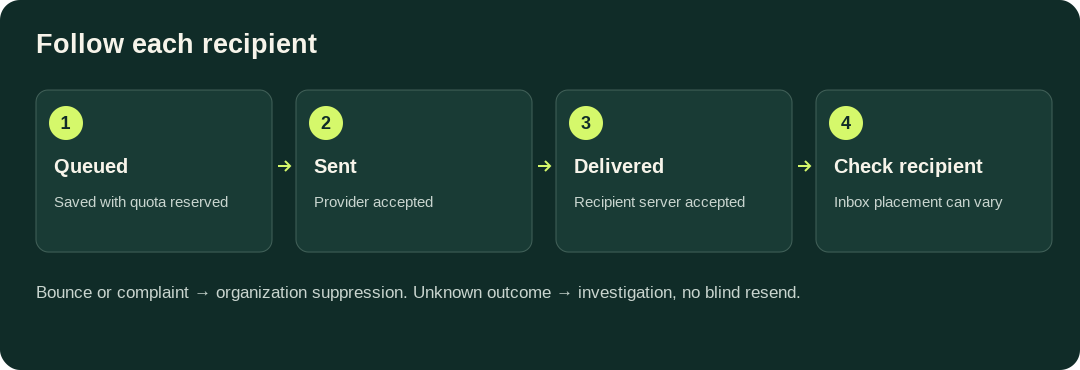
- Open the email and check each To, Cc and Bcc recipient separately.
- Read the timeline, provider response and attempts. A successful API response means the job was saved, not that a recipient has received it.
- Use the message ID when contacting support. Do not include message contents unless needed for the investigation.
Resend carefully
Resend email creates a new email and consumes quota again when accepted by the provider. Confirm that a repeat is wanted. For delivery_unknown, investigate the original attempt before resending: the original may already have reached the provider. Resending a webhook is different: it repeats the same event ID.
Delete test messages
Delete a selected test message or clear the test inbox using its delete controls. Deletion removes the capture and cannot be undone in the dashboard. Content that has expired cannot be previewed, searched by content or resent.