
Account and security
Create one account for your work and keep each application's mail in a separate project. Your first account becomes the owner of its organization.
Verify your address and create a project
- Open Create your account, enter your email address and select Send link.
- Open the signup email and follow its link within 30 minutes of requesting it. Opening the page lets you review the form before using the link.
- Enter your name and organization, choose and confirm a password of at least 12 characters and review the linked service documents. The form records the versions you accepted or acknowledged. Select Create account.
- Save the test key shown in your first project and open Test inbox. Use a test key to capture messages before connecting a sending domain or buying a plan.
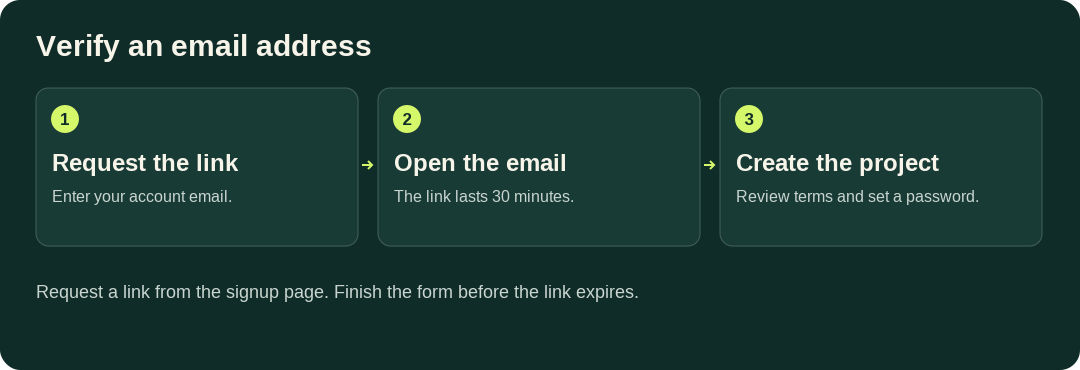
The signup form links to its exact document versions. The current Terms, Acceptable Use Policy, DPA, Privacy Notice, service provider list and cookie notice are also available from the site footer.
Turn on two-factor authentication
- Open Settings → Security → Set up authenticator. Enter your password once and select Continue.
- On your phone, select Open authenticator app. On a computer, open Google Authenticator on your phone, tap + and scan the QR code. You can also copy the private setup key into a time-based authenticator entry.
- Enter the app's six-digit code and select Verify and finish. The setup closes and an Enabled status confirms completion.
- On your next sign-in, enter your password and authenticator code. To disable it later, deliberately open Turn off two-factor authentication; owner accounts keep MFA enabled.
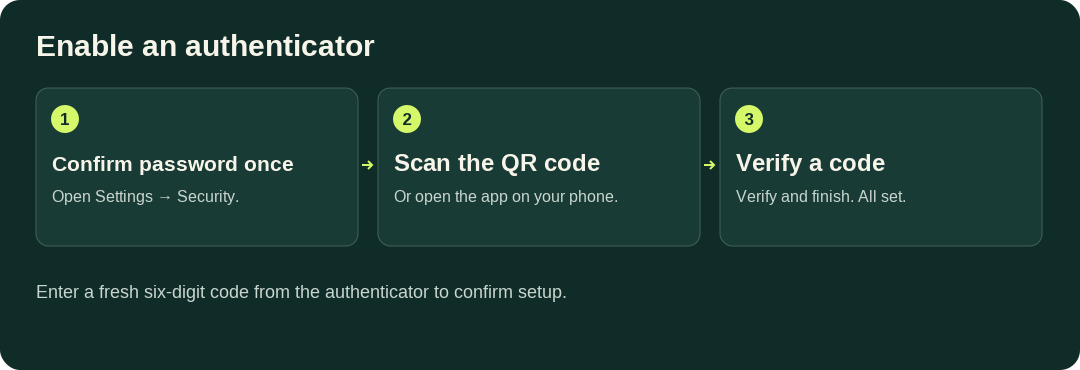
To turn MFA off, enter your password and a fresh code in Settings → Security. Operator accounts must keep MFA enabled. Five failed MFA checks temporarily lock changes for 15 minutes.
If a code fails, enable automatic time on your device and wait for the next code. Follow the recovery guide for a lost password, missing link or unavailable authenticator.
Stay signed in
Select Remember me when signing in to stay signed in for up to 30 days on a trusted device. Leaving it off uses a browser session cookie. Signing out ends access immediately; resetting your password revokes existing sessions. The owner console still locks after 30 minutes.
Organization roles
| Role | Access |
|---|---|
| Owner / Admin | Project setup, keys, mail, domains, webhooks, sending settings and audit history. |
| Developer | Mail, domains, keys, test inbox, webhooks and suppression management. Cannot change sending limits. |
| Billing | Usage, billing, prepaid purchases, subscriptions and retention settings. Email content and sending keys are restricted. |
Settings lists the members who have access. Self-service invitations are not available. Contact support before adding a colleague; do not share one login.
Close an account
Contact support from the owner account to request an export or closure. Stop your integration and revoke its keys first. Closure stops sending; operational records are deleted under the retention policy. Legally required billing records are handled separately.